Suggested Technique for Scaling a Model Using Shrinkage

Procedure

  1. To access the shrink functionality, select Set Up from the PART menu and Shrinkage from the PART SETUP menu (This menu is only available with the Pro/MOLDESIGN or Pro/CASTING Modules). At this point, there are three options: Formula, shrink By Dimension and shrink By Scaling.
  2. If Formula is choosen, the FORMULA menu will appear which contains the two equation options for defining shrinkage, 1+S and 1/(1-S) . If 1+S is choosen, shrinkage will be based upon the parts original geometry. (1+S is the default selection) Selecting 1/(1-S) bases the shrinkage on the parts resulting geometry. In these equation, S stands for the shrinkage value and is the number being enterd by the user.

    For example, if the model's size should decrease by 10 percent from it's original size, a shrinkage factor of -0.10 would be enterd using 1+S.

    Formula = 1+S

    S = -0.10

    Formula= 1+(-0.10) =.9

    The model will be 90% of its'original size.

    To increase the size of our original model by 10 percent, a value of 0.10 will be entered for the shrinkage factor.

    Formula = 1+S

    S = 0.10

    Formula= 1+(0.10) = 1.1

    The model will be 110% of it's original size.


  3. When specifying shrinkage by dimension, all dimensions, individual dimensions, or features may be selected to scale by any percentage. To shrink one dimension on a model by 25%, select By Dimension, By Dim and select a dimension to shrink. Using the default formula of 1+S, enter a value of -.25. The selected dimension will shrink to 75 percent of its original value and will now be displayed in magenta along with the percent shrunk in parentheses as shown in Figure 1.

    bgf83a

    Figure 1


  4. To shrink the model by Scaling, select By Scaling from the SHRINKAGE menu. With this option, specify X,Y, or Z directions to shrink in. A coordinate system will be required when shrinking by scaling.


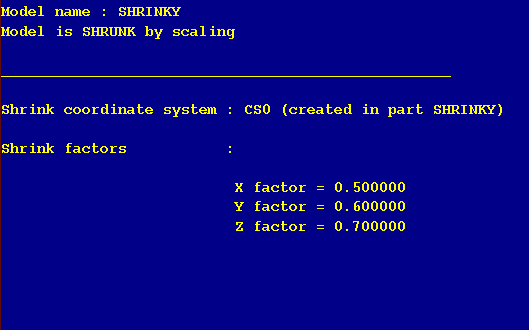
  5. To cancel shrinkage applied by dimension, select Clear from the SHRINK SET menu. To cancel shrinkage applied by scaling, select Clear from the SHRK BY SCALE menu. To view the applied shrinkage information, select Shrink Info from the SHRINKAGE menu. An example of this is illustrated in Figure 2.

    bgf83b

    Figure 2


Back to Pro/ENGINEER technical information