
Suggested Technique for Creating a Spring as a Base Feature

Figure of Final Model


Procedure

  1. Create a new part named SPRING.
  2. Create a Protrusion using the Sweep and Sketch Traj options.
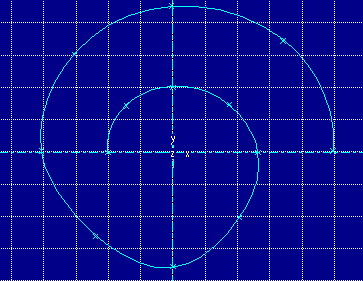
  3. To create the trajectory, start with two perpindicular centerlines as shown in Figure 1. Select Adv Geometry from the GEOMETRY menu. Pick Coord Sys and locate the coordinate system at the intersection of the centerlines. Select Spline from the ADV GEOMETRY menu and sketch the curve that will be used to create the sweep. To specify tangency at the spline endpoints, select Both from the TANGENCY menu. Select 13 locations to define the curve as shown in Figure 1 (the endpoints of the spline can not be coincident).

    Figure1

    Figure 1


  4. Dimension the spline to the coordinate system. To do this, choose Dimension and pick the spline. The user is prompted to "Select point on spline or spline itself", select the spline again (anywhere except on a spline point). Pick the coordinate system and press the middle mouse button. A message should appear that the spline is now dimensioned to local coordinate system.
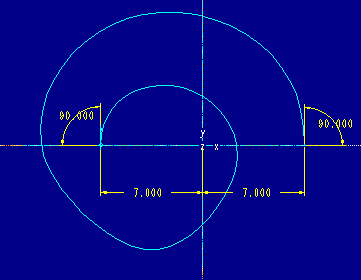
  5. Dimension the endpoint of the spline to the centerlines as shown in Figure 2. To add the angular dimension to the spline, pick the spline twice, pick a spline endpoint, pick the centerline, and then place the dimension with the middle mouse button. Regenerate and then modify the dimensions as shown.

    Figure2

    Figure 2


  6. Select Modify and pick the spline. The spline points are now displayed as white circles and a MOD SPLINE menu appears. If some of the menu options are grayed out in the MOD SPLINE menu, the spline was not dimensioned to the local coordinate system, and step 5 should be repeated. Choose Save pnts from MOD SPLN menu. Enter [SPRING] as the name of the file to save the spline points. Choose Cylindrical from the COORD TYPE menu. The system will write the SPRING.PTS file to your current directory.
  7. To edit the SPRING.PTS file, bring the point file into a system editor. You can use the System selection from the MISC menu, or open a workstation window. Call up the system editor with the SPRING.PTS file. Change the Z values to the ones shown below.
            RADIUS          THETA           Z
            ------          -----           -
              7               0             0
              7               45            0.5
              7               90            1
              7               135           1.5 
              7               180           2
              7               225           2.5
              7               270           3
              7               315           3.5
              7               0             4
              7               45            4.5
              7               90            5
              7               130           5.5
              7               180           6
    
    
    NOTE: The number of points in the file shown above does not need to be the same number of points sketched in the spline. The points listed above can be any desired value except for the first and last points of the file which need to have the same dimensions as the endpoints of the spline which were dimensioned in Step 5.

  8. Continue by selecting Read pnt, enter [SPRING], and select Cylindrical.
  9. Select Regenerate and the spline is successfully modified. At this point, it should look like a circle when viewing along the Z-axis. Choose Done to finalize the trajectory.
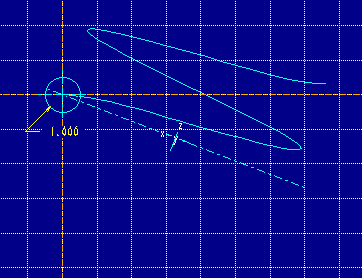
  10. Sketch and dimension the circular section with radius 1.00 as shown in Figure 3 (this is the section which will be swept along the helical trajectory).

    Figure3

    Figure 3


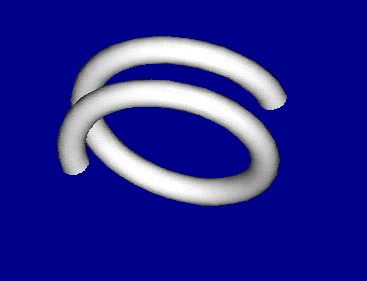
  11. Select Done to complete the feature creation. The spring should display similar to the display shown in figure 4.

    Figure4

    Figure 4


  12. To show the spring in an uncompressed state, you will need to create a new set of points for the spline. Select Feature, Redefine and select the spring base feature. Then select Scheme and Done. Select the Trajectory1 option to modify the spine points.
  13. Choose Modify and pick the spline. Choose Save pnts from MOD SPLN menu. Enter [SPRING2] as the name of the file to save the spline points. Choose Cylindrical from the COORD TYPE menu.
  14. Modify the SPRING2.PTS as described in step 7 above to have a larger change in the Z values. Choose Modify from the SKETCHER menu and pick the spline trajectory. Read in the modified SPRING2.PTS file.
  15. Choose Done/Return from the SEL SEC/TRAJ menu to finalize the modification. Regenerate and view the change to the spring base feature. Refer to Figure 5.

    Figure5

    Figure 5


    Back to Pro/ENGINEER technical information