Suggested Technique for Redefining Imported Surfaces
The following describes the recommended procedure for redefining imported surface
geometry in Release 17.0. It assumes that the IGES file has already been created
and imported into Pro/ENGINEER.
Procedure
-
The goal of this process is to obtain the completed surface quilt shown in
Figures 1 and 2 from the imported IGES data shown in Figure 3.
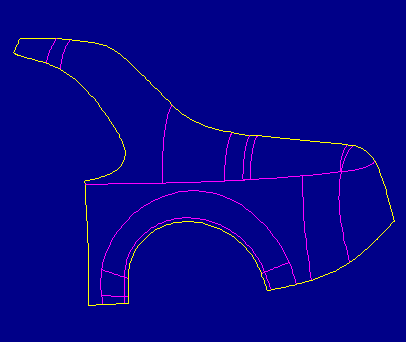
Figure 1

Figure 2

Figure 3
-
In the PART menu select Feature, Redefine, and the import feature.
In the REDEF IMPT menu select Fix Bndries, Zip Gaps, Auto
Select to select the edge chains highlighted in blue in Figure 4.
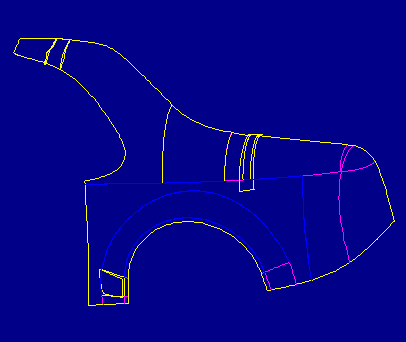
Figure 4
-
In the SEL CHAINS menu select Zip Gaps to view the proposed changes
necessary to join the selected edges. The red mesh lines are present to allow
better visualization of the surfaces.
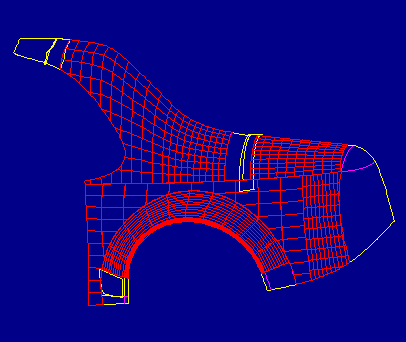
Figure 5
-
In the ACCEPT FIX menu select Accept to finish zipping the selected gaps.

Figure 6
-
The Message Window presents the following information: "WARNING: Design intent
is unclear. Use "Geom Check" menu for details." In the SEL CHAINS menu select
Geom Check. Figure 7 shows a surface highlighted in red and an edge of
that surface highlighted in cyan. In the SHOW ERRORS menu select Item
Info. The Information Window appears with the following message: "The two
highlighted surfaces are coincident for all or a portion of their geometry,
including the highlighted edge. You will probably want to delete one coincident
surface to avoid creating a zero volume region when surfaces are joined." What
you see is not one surface highlighted in red. There are actually two surfaces
right on top of each other highlighted in red, and the edge highlighted in cyan
is one area of the two surfaces that is coincident.

Figure 7
-
In the SHOW ERRORS menu select Next Item to view the next diagnostic.
Figure 8 shows a chain of two edges highlighted in green. Select Item
Info. The Information Window appears with the following message:
"Incompatible surface orientation prevents the highlighted surfaces/edges from
joining correctly. Check and correct all other Geom Checks for duplicate or
overlapping surfaces which might have caused an incorrect set of surfaces to be
joined. You may want to consider deleting a portion of that geometry and
recreating it in Pro/ENGINEER." Notice that the two coincident surfaces are
joined to each other along their top boundary.

Figure 8
-
In the REDEF IMPT menu select EXCLUDE SRFS and one of the two coincident
surfaces. In the EXCLUDE SRFS menu select Done. Figure 9 shows the
import feature after regeneration. Notice that one of the two coincident
surfaces is entirely outlined in yellow, i.e. it has been excluded from joining
into the quilt. Also note that the chain highlighted in green in Figure 8 is now
joined.

Figure 9
-
In the PART menu select Layer, Set Items, and use the Quilt
option to add the excluded surface to a layer that is blanked. Figure 10 shows
the current status of the import feature. Notice that there are still three
areas that need to be addressed.
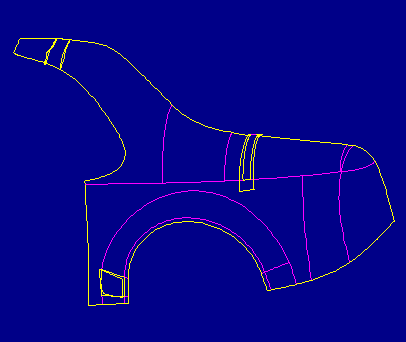
Figure 10
-
Figure 11 shows an untrimmed surface that is currently too large to join into the
quilt.

Figure 11
-
In the REDEF IMPT menu select Fix Bndries, Edit Bndry, and the
untrimmed surface. In the CHAIN OPT menu select Select All. Figure 12
shows the entire contour of the untrimmed surface ready to be edited.

Figure 12
-
In the EDIT BNDRY menu select Create, Project. Figure 13 shows
three edges highlighted in blue that will be projected onto the untrimmed
surface.

Figure 13
-
In the GET SELECT menu select Done Sel to create the inner chain of orange
edges shown in Figure 14.

Figure 14
-
In the EDIT BNDRY menu select Delete. Select the four segments belonging
to the outer loop of orange edges. Figure 15 shows the results. Notice that the
original yellow contour of the untrimmed surface is still present. This is the
case until the replacement of the original contour with the new orange contour is
completed successfully.
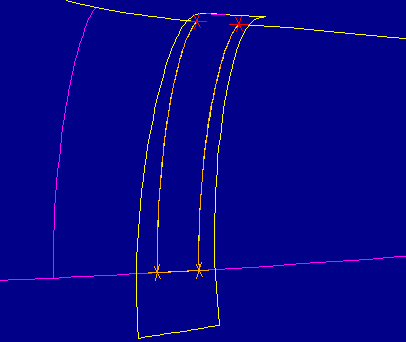
Figure 15
-
In the EDIT BNDRY menu select Create, Connect. Select the two red
vertices at the ends of the orange chain. In the GET SELECT menu select Done
Sel. Figure 16 shows the orange loop that has just been completed by the
addition of the top segment. Notice that the red vertices in Figure 15 are now
orange. The ends of chains are indicated by red crosses and internal vertices
are indicated by orange crosses.

Figure 16
-
Figure 17 shows the replacement contour highlighted in red upon selecting
Preview. This indicates that the current contour can be used to replace
the original contour. Figure 18 shows the replacement of the original contour
upon selecting Done. Notice how the surface has been trimmed so it fits
properly into the quilt. Also note that the surface has not been joined into the
quilt because we have not yet returned from the editing process and allowed the
regeneration of the import feature.

Figure 17
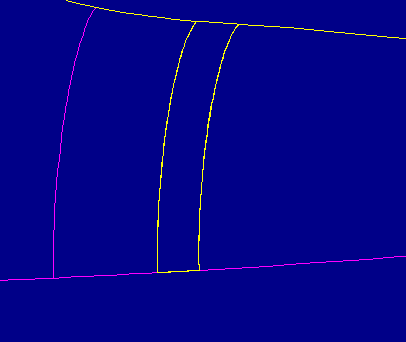
Figure 18
-
Figure 19 shows the current status of the import feature. The next area to be
addressed is shown in Figure 20. The red mesh lines on the surface are isolines.
Isolines represent the two main directions of surface creation. A surface can
be meshed by selecting View, Cosmetic, Mesh Surface. Notice
that the yellow edges belonging to the surrounding surfaces are very similar to
the red isolines. Edge and vertex misalignment is common to imported surfaces.
It is frequently the case that if surfaces were trimmed along isolines, more
surfaces would join together automatically.

Figure 19

Figure 20
-
In the SELECT SURF menu select Sel Surface and the meshed surface. In the
CHAIN OPT menu select Select All. Figure 21 shows the original contour
ready to be edited.

Figure 21
-
In the EDIT BNDRY menu select Modify, Move Vertex. Select the
upper left orange vertex and use Query Sel to place it at the upper left
"end of edge". Figure 22 shows the resulting contour. Figures 23-25 show the
contour after moving the lower left, lower right, and upper right vertices in the
same manner.

Figure 22

Figure 23

Figure 24

Figure 25
-
Figure 26 shows the replacement contour highlighted in red upon selecting
Preview. Figure 27 shows the replacement of the original contour upon
selecting Done. Notice how the edges and vertices have been aligned so
the surface fits properly into the quilt. Also note that the surface has not
been joined into the quilt because we have not yet returned from the editing
process and allowed the regeneration of the import feature.

Figure 26
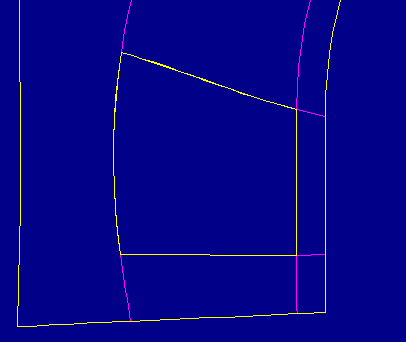
Figure 27
-
Figure 28 shows the current status of the import feature. The next area to be
addressed is shown in Figure 29. Notice that the yellow edges belonging to the
adjacent surfaces are very similar to the red isolines.

Figure 28

Figure 29
-
In the SELECT SURF menu select Sel Surface and the meshed surface. In the
CHAIN OPT menu select Select All. Figure 30 shows the original contour
ready to be edited. Notice the extra vertices in the top, right, and bottom
edges and the poor quality of the left edge. Edge fragmentation is common to
imported data and can lead to extra, unnecessary surface patches when the edges
are referenced in sweeps or blends.

Figure 30
-
In the EDIT BNDRY menu select Modify, Merge Edges. Select the two
orange vertices at either end of the bottom edge and in the CHOOSE menu
Accept the chain highlighted in red in Figure 31. Figure 32 shows the
resulting edge.

Figure 31

Figure 32
-
In the MODIFY EDGS menu select Merge Edges. Select the two orange
vertices at either end of the top edge and in the CHOOSE menu Accept the
chain highlighted in red in Figure 33. Figure 34 shows the resulting edge.

Figure 33

Figure 34
-
In the MODIFY EDGS menu select Straighten. Select the two orange vertices
at either end of the left edge and in the CHOOSE menu Accept the edge
highlighted in red in Figure 35. Figure 36 shows the resulting edge. Notice
that the new edge does not appear to be straight in this view. The edge does,
however, connect the two selected vertices with a straight segment that
conforms to the shape of the surface.
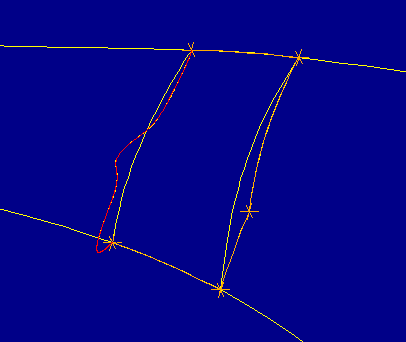
Figure 35
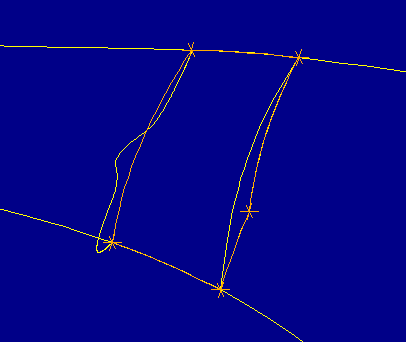
Figure 36
-
In the MODIFY EDGS menu select Straighten. Select the two orange vertices
at either end of the right edge and in the CHOOSE menu Accept the chain
highlighted in red in Figure 37. Figure 38 shows the resulting edge.

Figure 37

Figure 38
-
Figure 39 shows the replacement contour highlighted in red upon selecting
Preview. Figure 40 shows the replacement of the original contour upon
selecting Done. Notice how the edges have been aligned so the surface
fits properly into the quilt. Figure 41 shows the current status of the import
feature. Also note that the three surfaces that have been edited are not yet
joined into the quilt.
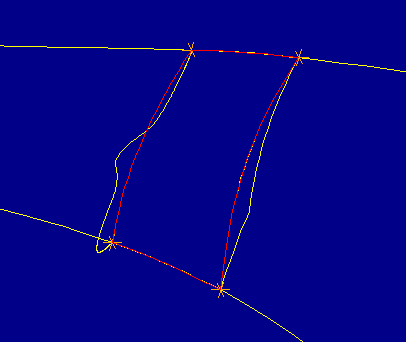
Figure 39

Figure 40

Figure 41
-
In the SELECT SURF menu select Done-Return to regenerate the import
feature. Notice in Figure 42 that after returning from the editing process, all
surfaces have been joined into the quilt.

Figure 42
-
In the REDEF IMPT menu select Fix Bndries, FixQuiltBndry. Figure
43 shows the edge chains that have been automatically selected.
FixQuiltBndry proposes the automatic replacement of these chains/edges
that are nearly tangent and almost an isoline with isolines of the surfaces.
Note that FixQuiltBndry searches all one-sided edges in the import feature
for selection (including those that belong to excluded surfaces).

Figure 43
-
Figure 44 shows an edge chain along the top of the surface that has been selected
for replacement. Notice that chain ends are indicated by red crosses and
internal vertices are indicated by orange crosses. In the FIXQULTBNDRY menu
select Done. Figure 45 shows the surface with the highlighted chain
replaced. To view the changes, in the REDEF IMPT menu select Fix Bndries,
Edit Bndry, the surface, and From-To in the CHAIN OPT menu. Figure
46 shows the vertices available for chain selection. Notice that there is no
longer an internal vertex along the top edge.

Figure 44
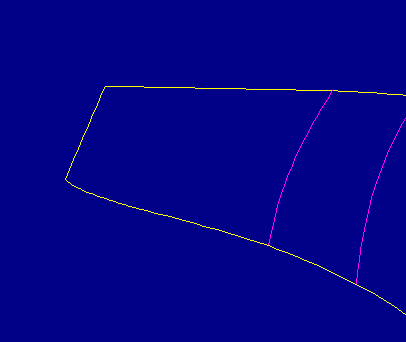
Figure 45

Figure 46
-
In the REDEF IMPT menu select Fix Bndries, FixVertices. Figure 47
shows that there are no badly aligned vertices present in this quilt.

Figure 47
-
In the FIX OPTIONS menu select Fix Tangency, Auto Select. The
two-sided edge chains that were selected are highlighted in blue in Figure 48.
The one remaining magenta chain was not selected because its dihedral angles are
larger than the default MaxDihedral value of 10 degrees. To check the dihedral
angle of two-sided edges, in the MAIN menu select Info, Srf
Analysis, Max Dihedral.

Figure 48
-
In the SEL CHAINS menu select FixTangency to view the proposed changes
necessary to establish more consistent tangency between surfaces.
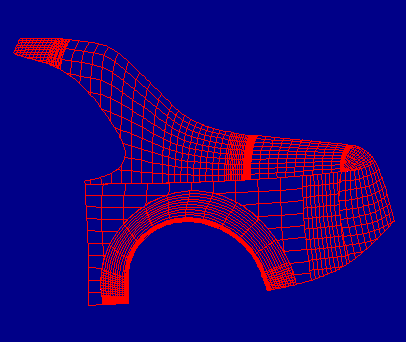
Figure 49
-
In the ACCEPT FIX menu select Accept to finish setting tangency. To view
the improvements, check the resulting dihedral angles as described above in step
31. Figure 50 shows the final state of the imported surfaces.

Figure 50
Back to Pro/INTERFACE technical information