Suggested Technique for Creating a Cam With Surfaces Using a Variable Section Sweep and Trajpar

This procedure outlines the creation of a cam with cycloidal motion using a variable section sweep driven by the trajpar function. This technique may also be applied to other models whose geometry is dictated by an equation. The optional module Pro/SURFACE is required.

The goal of this procedure is to create the cam illustrated in Figure 1.
suf206a

Figure 1


Procedure
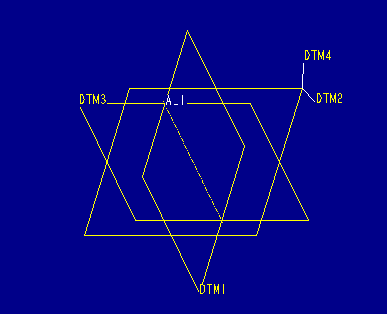
  1. Start by creating default datum planes, a datum axis representing the axis of cam rotation, and an offset datum plane representing the thickness of the cam. In Figure 2 DTM4 is offset by 0.5 from DTM2 (the separation cannot be seen in the graphic due to the default sizes of the datum features.)

    suf206b

    Figure 2


  2. Next create two extruded surfaces representing the dwell areas of cam. Sketch the sections on DTM4 and specify the depth up to DTM2 by choosing the option UpTo Surface in the SPEC TO menu. This allows the thickness of the part to be completely driven by the offset of DTM4. Also, modify the dimension symbols of the overall angles and radii in order to clearly identify the dimensions in a relation in a later step. Use Modify, DimCosmetics, Sybmol to accomplish this. Figure 3 shows the two sections superimposed.

    suf206c

    Figure 3


  3. This and the next step will create the surface representing the cycloidal motion area of the cam. First create sketched datum curves to be used as the spine and x-vector of the variable section sweep (see Figure 4 below.) Sketch the first curve on DTM2. The section is comprised of two centerlines, each aligned to both a vertex of one of the extruded surfaces and to axis A_1, and of an arc with an arbitrary radius (1.0 in this example.) Once the curve is created, modify its dimension symbol to "traj_radius" for use in a relation in the next step. Sketch the second curve on DTM4 with a section which is simply a Geom Tools, Use Edge of the first curve.

    suf206d

    Figure 4


  4. Now create the cycloidal motion surface using a variable section sweep. Choose Feature, Create, Surface, New, Advanced, Var Sec Sweep, and Nrm To Spine. Use Select Traj from the VAR SEC SWP menu to select the curves created in the last step as the spine and x-vector trajectories. Choose Done from the VAR SEC SWP menu when prompted for another trajectory. The section of the sweep, shown in Figure 5, is comprised of two vertical centerlines (one through the spine and one through the x-vector) and a horizontal line with a vertical dimension from the trajectories. No alignments are necessary.

    suf206e

    Figure 5

    The single section dimension is driven by a sketcher relation. While still in the section sketch, choose Relation from the SKETCHER menu and Add. Enter the following relation (substitute the dimension symbol in your section for the left hand side of the equation):

    sd5=(R1-TRAJ_RADIUS)+(R2-R1)*(trajpar-1/(2*pi)*sin(360*trajpar))

    This is a standard equation for generating cycloidal motion. Here are the meanings of the symbols in this relation:

    See Figure 6 for the completed surface feature (highlighted in red.)

    suf206f

    Figure 6


  5. Because this cam is symmetrical, this cycloidal surface can be mirrored using a Surface Transform about DTM3 (also highlighted in red in Figure 6.) Use Feature, Create, Surface, Transform, Mirror, Copy, Done, select the surface, then select DTM3 to mirror about.
  6. Next create a Composite datum curve feature from the edges of the four surfaces where they lie on DTM4. This will serve two purposes: one, the loop of the curves can be referenced in the next step, and two, the curve can be referenced as the location of the center of the cam follower in the cam-follower assembly.
  7. Lastly, create an extruded protrusion from DTM4 to DTM2. The section will be offset by the radius of the follower. Choose Geom Tools, Offset Edge, Sel Loop and select the curve created in the last step. With this feature, the cam with cycloidal motion is complete.

    suf206g

    Figure 7


Back to Pro/ENGINEER technical information