Suggested Technique for Using Surfaces in Place of Rounds
In some situations, it is possible to create geometry which makes the use of
the traditional round functionality impossible. The following
technique illustrates one of these situations and how surfaces can be used
in place of rounds.
The objective of this example is to create the geometry shown in
Figure 1b. Figure 1a depicts the base feature which requires a cut and round feature to be added.
The cut feature shown in Figure 1b, extends from DTM2 through the
convex surface and has a round feature along the bottom edge with a radius of 1.5.
The end points of the convex surface are aligned to DTM2.
With the dimensions shown, this feature cannot be constructed through the
use of a solid cut and edge round. The required radius
for the round would violate tangency constraints and cause the round to
fail. However, a surface can be created which is not restricted by the
same constraint as the solid geometry, and therefore will allow for
the round to be created.

Figure 1a
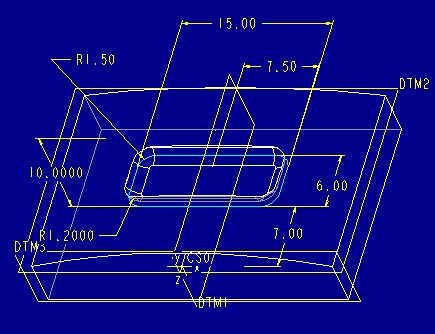
Figure 1b
Procedure
-
It is necessary to create the basic surface which represents the
cut, before the round feature is added. This can be done through:
Create, Surface, New, Extrude, and Done. Under the ATTRIBUTE menu select
One Side, Capped Ends, and Done. The capped ends option will result in a closed
volume which is neccessary for the cut operation to be performed.
With the surface feature's attributes defined, Select DTM2 as the sketching
plane and flip the arrow to point upwards through the convex surface of the
protrusion. Selct DTM3 as the Bottom reference.
-
Once in Sketcher, sketch and dimension the section as shown in
Figure 2a. This represents the dimensioned cut which is required. Once the sketch
has been dimensioned and regenerated successfully, extrude to a Blind depth
of 10. This depth is greater than the depth of the cut feature, and will
remove all the necessary solid geometry when the cut operation is performed.
The resulting capped surface is shown in Figure 2b.

Figure 2a

Figure 2b
-
The bottom edge of the surface, highlighted in Figure 3a, will be used
for creating an edge round. Since the surface is not constrained by
solid geometry, the desired radius for the round can be used.
This can be accomplished through: Create, Round, and using the default options
in the OPTIONS menu. To select the edge highlighted in figure 3a, use the Loop
option and Query Select the bottom surface of the surface feature created in step 2.
When the proper surface has been selected, the edge to be rounded will be
highlighted in red. Accept this loop, the loop of edges will turn blue, and
select Done from the EDGE SELECT menu. ENTER a value of 1.5 for Radius and the
round will be created on the surface feature. (Figure 3b)

Figure 3a

Figure 3b
-
With the surface representing the final cut completed, the actual cut
to the solid geometry can be performed. This is done through Feature, Create,
Cut, and Use Quilt, Solid from the SOLID OPTIONS menu. When prompted to
"Select the Datum Surface or quilt to use for cut"
select the quilt created and Flip the arrow to remove the material inside
the closed volume. This is why it was necessary to specify capped ends when
assigning the original surface attributes. If the capped ends option was not
selected, the cut would fail. Choose Done from the FEATURE EDIT
menu.
-
The resulting geometry can be seen in Figure 4.
Through the use of surfaces and a simple cut, the complete feature was
easily created. This technique can be implemented in many situations where
a round feature is required, but due to geometry constraints, traditional
rounds cannot be used. In using surfaces to replace rounds, it is simply
a matter of constructing the proper surfaces which can be used for cutting
or protruding solid geometry.

Figure 4
Back to Pro/ENGINEER technical information